How to Set Up Multiple Macs for Always-On AI Agents
A practical multi-Mac setup for AI agents: mirrored folders, Tailscale, SSH aliases, relative paths, launchd, and phone-reachable sessions.
Jun 10, 2026
16 min read
Updated Jun 12, 2026
This is the nerdiest article I have written since last week.
Last week was Why We Need to Build a Second Internet for Our Agents, which is about Printing Press CLI and why agents need software they can actually operate. So apparently this is a series now: normal business owner slowly becomes person with strong opinions about SSH config.
This one came from a conversation with my CFO yesterday, shoutout @JeffreyDebolt. He is AI-pilled enough that I do not have to explain why any of this matters, which is dangerous because it means we spend too much time nerding out on our calls.
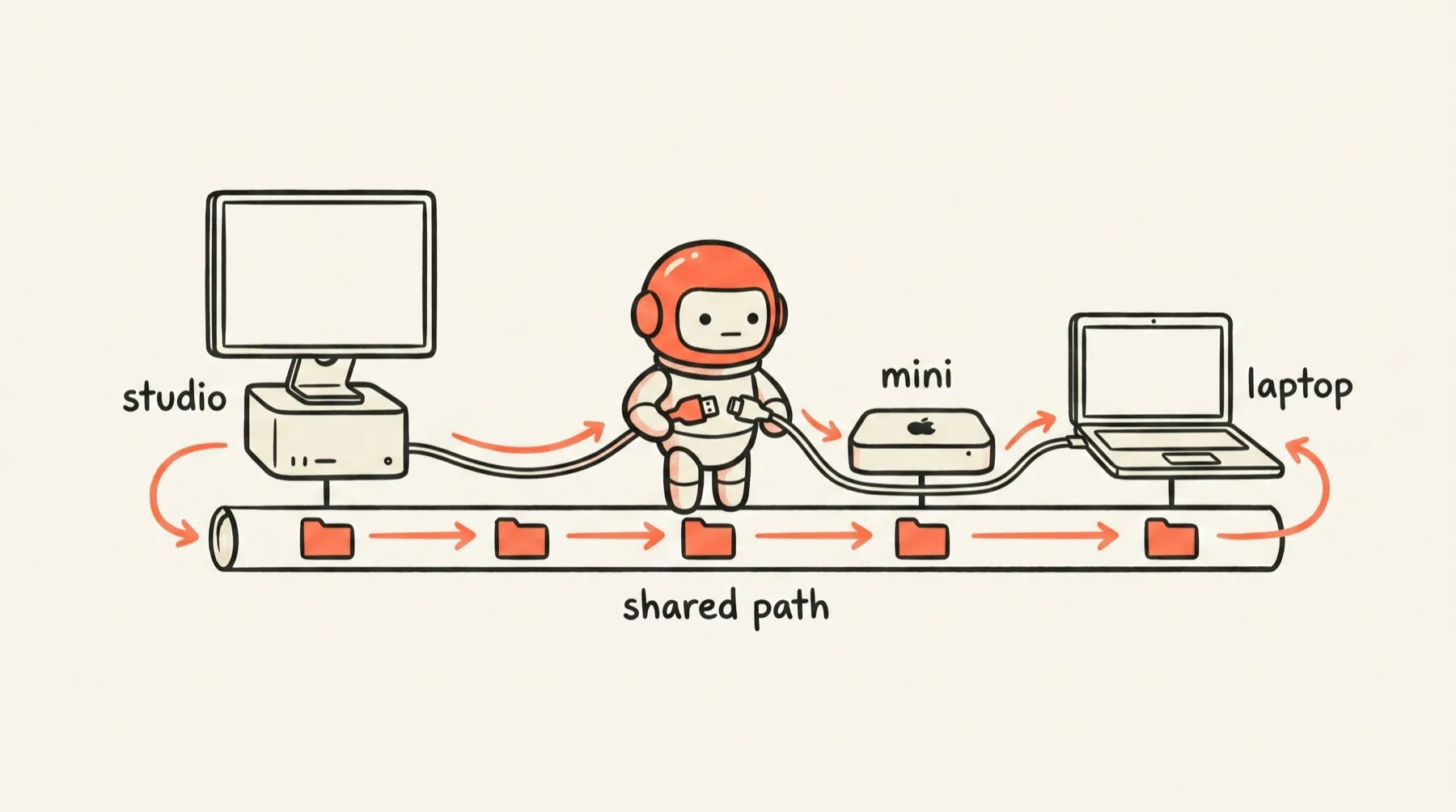
I was explaining how I set up my three computers so they all work like one workspace: Mac Studio at home, MacBook Pro when I travel, Mac mini running agents in the background.
He kept writing things down.
That is usually my sign that I should stop pretending something is obvious and write the article.
So here it is: the multi-Mac setup I wish someone had handed me when I was still screen-sharing into a headless computer.
I basically never SSHed into my own computer until last year.
I still barely knew what SSH meant. The plain-English version is: SSH is a way to open the terminal on another computer without sitting in front of it. You are not screen sharing. You are not dragging windows around. You are typing commands on one machine and they are running on another.
That sounded like a nerd hobby to me until agents made it useful.
Last year I got a Mac Studio because I wanted to be able to code from my phone while I was traveling in Europe. I wanted one machine that could stay on at home while my laptop moved around with me.
Then in January, when I got deeper into OpenClaw, I bought a Mac mini to run agents. At first it had its own iCloud account, its own user account, and its own little setup. I was not really SSHing into it because, honestly, I did not know what that meant in practice. I screen shared. For a while I even had another monitor attached to it.
A few months later, the monitor is gone. The Mac mini is truly headless. I maybe screen share into it every few weeks if something breaks or Apple does an update and it resets.
And the thing that broke was boring: I bought a Mac mini with not enough storage. Big repos and agent work filled it up, things got weird, and I had to add external SSD storage.
This is the part nobody tells you when you start running agents seriously.
The hard part is not only which model to use. It is making your computers feel like one workspace so the agent can keep working even when you are on the couch, traveling, or using a different Mac.
Here is the setup.
The goal: one workspace, not three computers
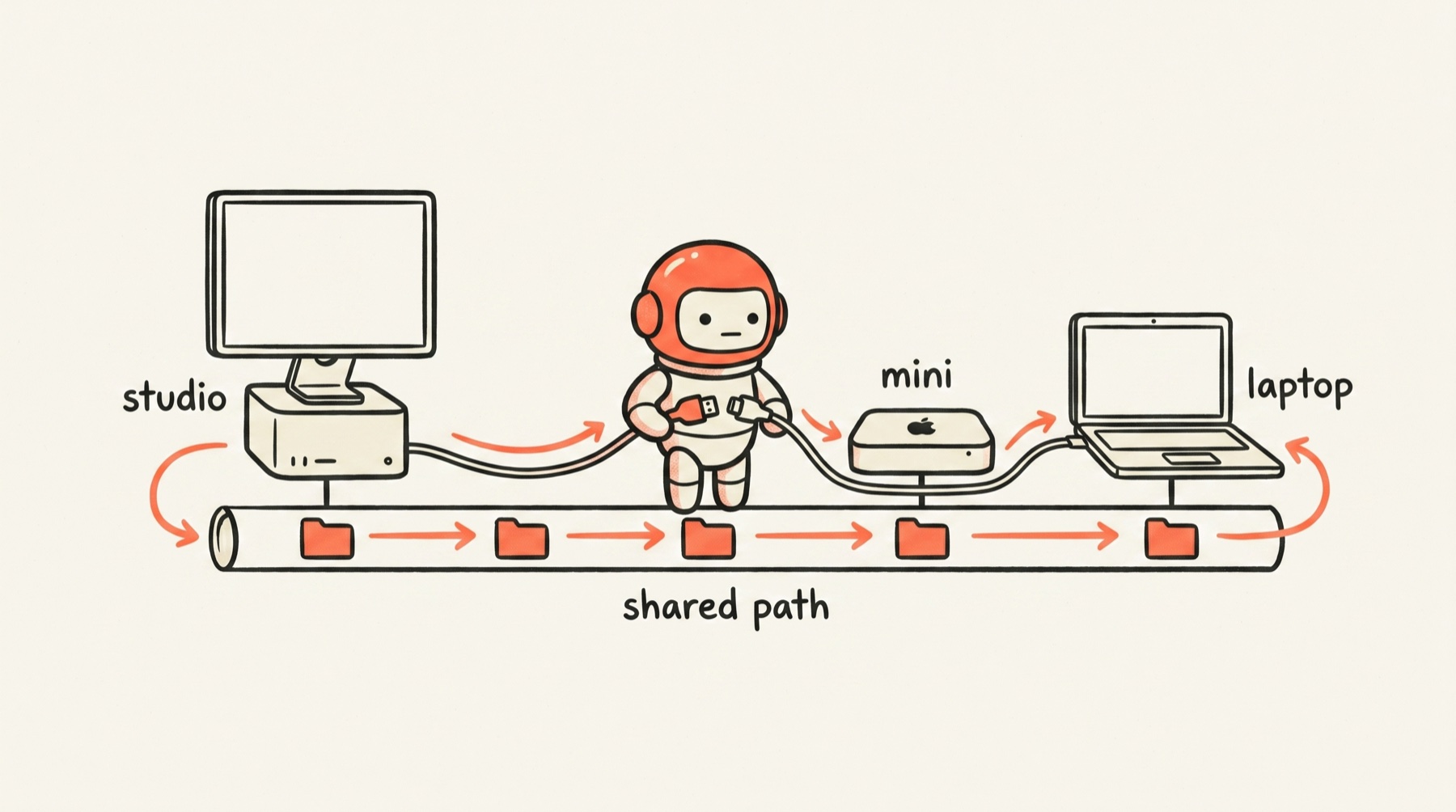
I use three Macs:
- Mac Studio when I am home
- MacBook Pro when I am traveling
- Mac mini as the always-on agent machine
The important part is not that I own three Macs. The important part is that they are set up to feel boringly similar.
Same folder structure. Same project names. Same shell setup. Same short aliases. Same agent tools where the agent actually needs them.
If I have to stop and think, “Wait, which machine am I on?” the setup is not done.
The Mac mini has a different username than my other machines (unique iCloud account for Hermes/OpenClaw). That matters less than you think if the folders underneath the home directory match.
Bad setup:
Mac Studio:   ~/Developer/littlemight
Mac mini:     ~/Code/littlemight-site
MacBook Pro:  ~/Projects/lm
Good setup:
Mac Studio:   ~/Developer/littlemight
Mac mini:     ~/Developer/littlemight
MacBook Pro:  ~/Developer/littlemight
The username can differ. The home-relative path should not.
That means I can tell an agent:
Open ~/Developer/littlemight/content-os/drafts/blogAnd it does not matter whether the agent is on the Mac mini, the Mac Studio, or the laptop.
Agents are literal. If you hand them a path that only works on one machine, they will confidently fail on the other one. Yes, they can figure it out, but who has the time or the tokens to be burning in this economy…
Use relative paths everywhere
This is the tiny habit that saves the most time.
Do not give agents paths like this unless you have to:
/Users/cathryn/Developer/littlemightThat path only works on a computer where the username is cathryn.
Use this instead:
~/Developer/littlemightOr, when you are already inside the project, use the shortest relative path:
content-os/drafts/blog/article.mdI even made this a mouse shortcut.
I use a Logitech MX Master mouse. Mine has a bunch of buttons. One button is mapped to Wispr Flow so I can click once and start voice-to-text easily. Another button is mapped to copy a home-relative file path from Finder.
So if I am looking at a file, I can click one button, paste the path into an agent session.
That is faster for me. It is also cheaper in tokens because the agent does not have to grope through the filesystem to find the thing I already had open.
I use Dropbox for workspace and GitHub for code projects.
Turn on Remote Login in macOS System Settings
Do this first. Nothing else works until it is on.
On each Mac you want to SSH into, open System Settings → General → Sharing and turn on Remote Login. While you are there, also turn on Screen Sharing. You will not need it often once SSH is comfortable, but it is the fallback when something breaks and you need to see the screen.
Verify from the terminal:
sudo systemsetup -getremotelogin
# Remote Login: On
Install Tailscale
Tailscale makes your devices act like they are on the same private network, even when they are not in the same building. Your MacBook Pro can reach the Mac mini at home without exposing it to the public internet.
Install Tailscale on every Mac, sign into the same account on each one, and give each machine a short device name. Then confirm they can see each other:
tailscale statusThe other machines should appear in the list. If they do not, fix this before moving on.
Share browser cookies only with machines you trust
Tailscale solves one problem: can this Mac reach that Mac?
It does not solve the annoying browser problem.
An agent can SSH into the Mac mini, open a browser, and still get stuck at a login screen for GitHub, X, Cloudflare, Shopify, or whatever tool it needs. If the answer is “paste your password into the agent chat,” the setup is wrong.
This is where Agent Cookie fits.
Plain-English version: browser cookies are the little login receipts your browser stores after you sign into a website. Agent Cookie lets you share the right cookies with an agent browser session so the agent can use a site you already approved, without you giving it your password or typing 2FA codes into chat.
I think of it like giving the agent a temporary badge, not the master key.
Use it carefully:
- only share cookies with machines you control
- only share the accounts the agent actually needs
- keep the agent machine behind Tailscale
- never put cookies in GitHub, Dropbox, logs, or a shared repo
- revoke access by logging out, clearing the browser profile, or rotating the session
This is one of those boring pieces that makes agents feel much less annoying. The agent does not need to ask you to log in every time it hits a private dashboard. But it also does not need your actual password.
Add each machine to SSH config
Put each machine in ~/.ssh/config with a short name so you never type a full SSH command:
Host mac-mini
  HostName <tailscale-device-name-or-private-ip>
  User <remote-user>
  IdentityFile ~/.ssh/id_ed25519
  ServerAliveInterval 60

Host studio
  HostName <tailscale-device-name-or-private-ip>
  User <remote-user>
  IdentityFile ~/.ssh/id_ed25519
  ServerAliveInterval 60

Host mbp
  HostName <tailscale-device-name-or-private-ip>
  User <remote-user>
  IdentityFile ~/.ssh/id_ed25519
  ServerAliveInterval 60
ServerAliveInterval 60 keeps the connection from dying silently. Replace the placeholders with your own Tailscale device name or IP, username, and key path.
Test it:
ssh mac-mini
pwd
If you land on the remote machine, keep going.
Add one-word aliases
Once SSH config works, make it frictionless.
For zsh or bash, add this to your shell config:
alias mini='ssh mac-mini'
alias studio='ssh studio'
alias laptop='ssh mbp'
Then reload it:
source ~/.zshrcOr open a new terminal tab.
For fish, use abbreviations:
abbr --add mini 'ssh mac-mini'
abbr --add studio 'ssh studio'
abbr --add laptop 'ssh mbp'
Now the action is one word.
I type one word and I am on the Mac mini. Another word and I am on the Mac Studio. Another and I am on the laptop. If remote access requires thinking, you will avoid it. If it is one word, you will use it constantly.
Pro tip: add shell autosuggestions while you are in there.
If you are on zsh, add this to your ~/.zshrc too:
[[ -f /opt/homebrew/share/zsh-autosuggestions/zsh-autosuggestions.zsh ]] && \
  source /opt/homebrew/share/zsh-autosuggestions/zsh-autosuggestions.zsh
Install the package first if you have not:
brew install zsh-autosuggestionsAfter this, your shell will ghost-suggest previous commands as you type. Type m and it will offer mini in grey. Press the right arrow key to accept it. You never have to remember the alias name again, only the first letter.
This is the single shell plugin that saves me the most time. The aliases are already short; autosuggestions make them invisible.
Tell your agent to set this up instead of copying my exact config
You do not need my usernames, hostnames, or private IPs.
You need the prompt that gets your agent to inspect your setup and create the right version for your machines.
If you only copy one thing from this article, copy this.
Here is the prompt I would hand to an agent on a new Mac:
I want to set up this Mac so I can SSH into my other Macs using short aliases.

Goal:
- I have multiple Macs.
- I want the same project folder structure on each machine.
- I want Tailscale to handle private networking.
- I want one-word aliases like `mini`, `studio`, and `mbp`.
- I do not want secrets, private keys, or tokens printed in chat.

First, inspect this machine without changing anything:
- current shell and shell config files
- ~/.ssh/config
- existing SSH keys, reporting only whether they exist
- Tailscale status, reporting only device names and whether Tailscale is running
- current project folder structure under my home directory
- installed agent tools such as claude, codex, hermes, or other CLIs

Then ask me:
1. Which machine is the source of truth for folder structure?
2. What aliases do I want for each machine?
3. Should HostName use Tailscale device names or private Tailscale addresses?

Before editing anything:
- explain the plan
- back up each config file you will edit
- do not delete files
- do not overwrite SSH keys
- do not print secrets or private keys

Then make the smallest safe changes:
- update ~/.ssh/config with Host entries
- add shell aliases or fish abbreviations
- reload the shell config if safe

Verify:
- ssh <alias> connects
- tailscale status works
- pwd shows the expected home directory
- the expected project path exists on each machine

If something fails, stop and report the exact failed command without guessing.
The setup is not about copying my machines. It is about giving an agent enough context and safety rules to build your version.
The ops folder: let Claude or Codex do the SSH work for you
For each machine I manage remotely, I keep an ops folder on my local machine. It has two files that matter: CLAUDE.md and AGENTS.md. Together they tell any Claude or Codex session opened there how to SSH into the remote machine, what systems are running on it, and how to diagnose common problems.
When something feels off with the Mac mini, I do not open a terminal and type SSH commands. I open the ops folder and say: “Check on things.”
The agent reads the context, SSHes into the Mac mini, checks the gateway, looks at recent logs, and reports back in plain language.
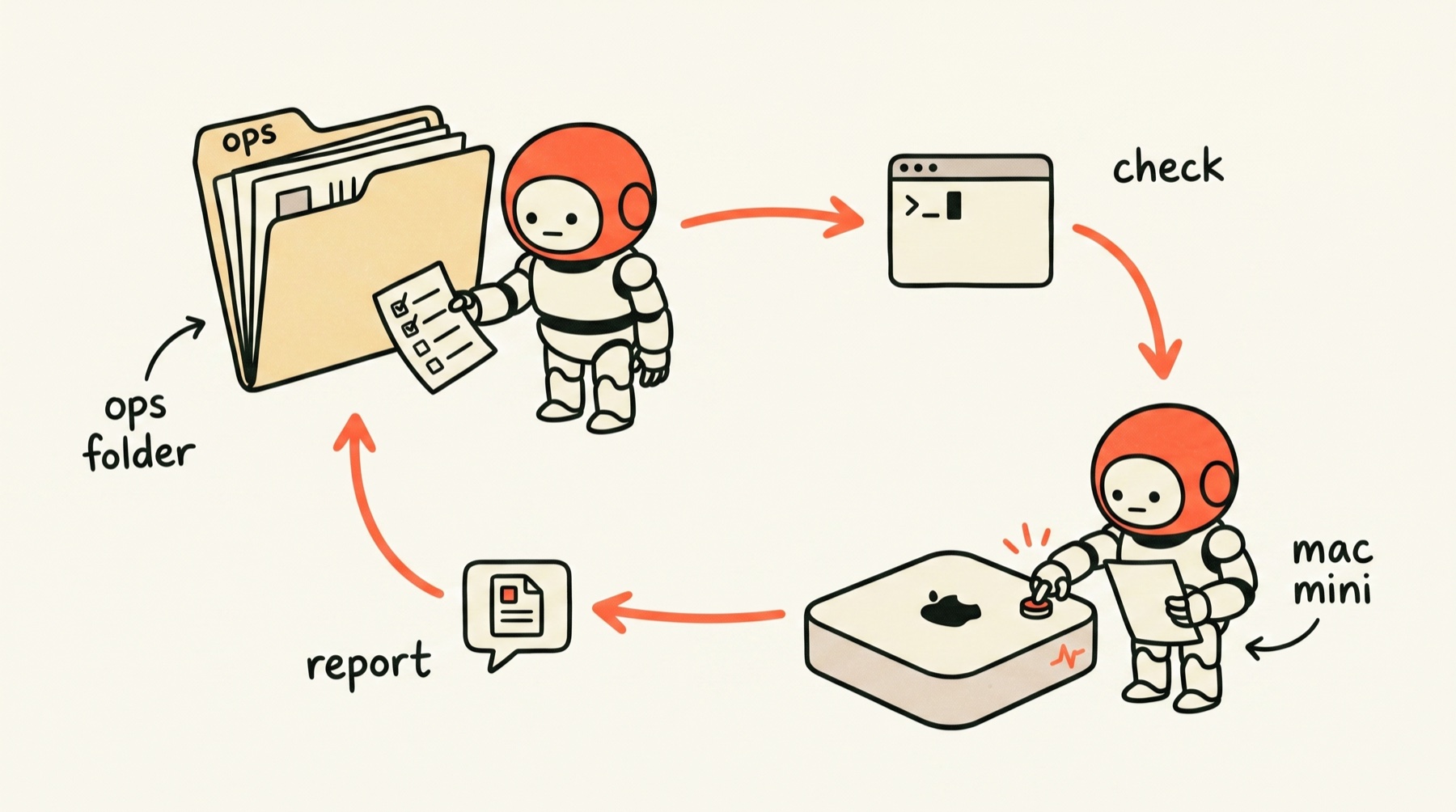
The structure is simple:
~/Developer/
  mac-mini-ops/           ← ops folder for the always-on machine
    CLAUDE.md             ← context for Claude Code sessions
    AGENTS.md             ← context for Codex and other agents
    bin/
      status.sh           ← quick health check (agent runs this over SSH)
      logs.sh             ← recent logs and failures
      revive.sh           ← for when the machine is overloaded
The files describe the SSH alias, the Tailscale address, what agent services are running, and what the common failure modes look like. They do not have to be long. A few paragraphs and a table of what to check is enough.
Now every Mac that has this folder can manage the Mac mini. I open it from wherever I am, ask the agent to check on things, and it does the SSH work for me.
Out of this came mac-agent-ops, a small open-source control-room kit for running Mac-based agents over SSH. After building private runbooks for my own setup, I pulled out the reusable, non-private patterns: status checks, log tails, port forwarding, reboot helpers, auth handoff, incident templates, example configs, and redaction guidance. None of our private operational details are in there. It’s just the boring starter kit I wish I had before making my own.
You can also schedule this.
Instead of waiting until something feels wrong, set up a scheduled agent on your local machine that opens the ops folder on a cron schedule and checks on the remote machine automatically. You get a report in your notifications or messages before you even think to ask.
A simple version:
# runs every morning via launchd or cron
cd ~/Developer/mac-mini-ops
claude --print "Run a quick health check on the Mac mini. SSH in, check that agent services are running, check disk space, report any failures in plain language. If everything is fine, say so in one sentence."
This is the real end state of the setup.
The SSH aliases are for when you want to drop into a shell yourself. The ops folder is for when you want an agent to do the remote work on your behalf. The scheduled check is for when you want that to happen without you thinking about it at all.
Keep the agent machine from drifting
A remote machine slowly becomes weird if you ignore it.
One missing command. One old skill. One stale shell config. One repo in the wrong folder. Suddenly the Mac mini works differently than your laptop and you are debugging the setup instead of doing work.
On my machine, I verified a daily launchd job that syncs agent skills, commands, and hooks. The public-safe version looks like this, but treat it as a pattern, not a command to paste blindly:
# Runs on a schedule with launchd
cd ~/.agents
git pull --rebase --autostash origin main
git add skills commands hooks
git commit -m "sync agent tools from $(hostname)" || true
git push origin main
Do not blindly sync secrets.
Do not put .env files, tokens, private keys, or machine-specific credentials in this repo.
The point is to sync the boring shared operating layer:
- skills
- commands
- hooks
- agent instructions
- reusable scripts
The agent host should not become a museum of old config.
Keep remote control active by default
If I start a session on the Mac mini, I want to be able to check it from my phone later. Not because I want to run my life from my phone. Because I do not want to discover 40 minutes later that a session finished, crashed, or needed one approval and I had no way to see it.
The always-on pieces are handled with LaunchAgents, macOS’s built-in way to start services at login and keep them alive. Two settings that matter:
RunAtLoad = true
KeepAlive = true
Start at login. Restart if it crashes. For an agent machine that means:
- Agent gateway starts automatically
- Dashboard or control surface binds only to the Tailscale address
- Notifications go to Telegram, iMessage, or email
Do not expose any of this to the public internet. Keep it behind Tailscale.
If you use the same Claude account on multiple machines, you can reach any session from your phone, but this requires an agent gateway (like Hermes) running and reachable over Tailscale. It is not built into stock Claude Code. The way I have the Mac Studio set up: the gateway starts at login, stays alive, and binds only to the Tailscale network address. If I start a Claude session from anywhere, I can always get back to it from my phone because the control layer is always on.
The rule is simple: when you start a remote agent session, assume you will need to check it later from somewhere else.
Design for that before you walk away.
Screen sharing is the fallback, not the workflow
At the beginning I screen shared into the Mac mini because I did not know what I was doing.
That was fine. It got me started.
But screen sharing should become the fallback, not the daily workflow.
My current hierarchy is:
- Agent reports back in chat.
- SSH in with a one-word alias.
- Check the persistent session or logs.
- Screen share only if something graphical or weird is broken.
- Power-cycle only if everything else fails.
If you are screen sharing every day, your remote setup is probably still too manual.
Add boring physical fallbacks
The most sophisticated agent setup can still be taken down by dumb physical reality.
My Mac mini did not have enough internal storage. Big repos and agent work filled it up. So I added external SSD storage.
If you do this, keep the mount name stable.
Do not create a new path that changes every time you plug something in. Agents are literal. If the project lives on an external drive, give that drive a consistent name and document where the repos live.
Same for power.
If your always-on machine freezes and you are away from home, a smart plug can be the last-resort reboot button. Not the first option. Try SSH, a graceful restart, and screen sharing first. But if the machine is unreachable and you are traveling, the dumb wall switch may be what saves you.
That is why it works.
What actually belongs on every machine
For this setup, the required layer is small:
- Tailscale for private access
- SSH config and shell aliases
- identical project folder structure
- shared agent skills, commands, and hooks
- launchd jobs for always-on agent services
- a notification/control path you can reach from your phone
- enough storage that the agent host does not constantly fall over
The reset test.
My MacBook Pro recently got fully reset. Had to wipe the whole thing.
It did not take long. I installed four apps:
- Codex
- Claude Code
- Tailscale
- Dropbox
That was it. As soon as Tailscale was up, I had my Mac Studio SSH into the MacBook Pro and install everything else I needed: shell config, agent skills, project folders, CLI tools, the whole stack. The Mac Studio already knew how to set up a machine because that is what it has been doing all along. The reset went from inconvenient to boring in under an hour.
That is the real payoff of this setup. The SSH infrastructure is not just for running agents. It is also a recovery system. Any machine in your fleet can rebuild any other one.
The checklist
If I were setting this up again, I would do it in this order:
- Pick the always-on machine.
- Mirror the project folder structure across all Macs.
- Install Tailscale on each Mac.
- Confirm each Mac can see the others in
tailscale status. - Share browser cookies with the agent browser only when the account and machine are trusted.
- Turn on Remote Login on the machines you want to SSH into.
- Add each machine to
~/.ssh/config. - Add one-word shell aliases.
- Test each alias from each machine.
- Set up your shared agent skills, commands, and hooks.
- Use launchd to keep agent gateways or control services alive.
- Route completion/failure notifications somewhere you will see them.
- Add stable external storage if the host is underpowered.
- Add a smart plug if the machine is truly headless and you travel.
- Screen share only when SSH and agent control are not enough.
If you want the phone-access/control-layer version of this setup, I wrote a separate guide to accessing your OpenClaw or Hermes agent from anywhere. If you are still choosing the first machine, start with the Mac mini AI employee setup first.
The final test is not whether it works while you are sitting at your desk.
The final test is whether you can leave the room, check from your phone, and still understand what is happening.
I learned SSH so I could stop doing it myself
I did not become an SSH person because I suddenly wanted to be more technical.
I became one because agents needed a stable place to run and I needed to reach them from wherever I was.
The ops folder, the CLAUDE.md, the scheduled health check, all of it is pointing at the same thing: a setup where an agent checks on the Mac mini while you do something else.
I write about running a real business with AI agents at littlemight.com.

Written by
Cathryn Lavery
Cathryn went from designing buildings to architecting products. She founded BestSelf, bought it back from private equity in 2024, and rebuilt it AI-native. She's currently building something new in AI. Little Might is where she doesn't have to keep it all in her head.
Related reading
-
Mar 10, 2026
Everything You Need Before Your AI Employee Starts
-
Feb 16, 2026
Why Your OpenClaw Agent Doesn't Remember You
-
Jun 22, 2026
Your first AI loop should be for yourself (template included)
-
Jun 1, 2026
How to Access Your OpenClaw or Hermes Agent From Anywhere
-
Mar 16, 2026
How I built my wife a personal AI assistant on OpenClaw (and what actually took time)